Drag the dots above to shape, or drag anywhere to move
Color
Font
Place
Drag a label to move it. Tap a label to rotate it
Color
· light on dark, dark on light
Touch the photo to pick the label color.
Lined up where the picture turns dark.
Rotate
Size
Export
Ratio
Size
Full size needs a lot of memory - on a phone, 2048 px is the safe choice.
JPG quality
Reset all settings?
The divider, line and labels go back to how they started. Your photos stay.
Remove both photos?
You can add new photos after this. Your divider, line and label settings stay
Premium features
Your photo uses , which only available to paid Patreon members of @macro.viewpoint. You can also save it with a watermark, or without the premium features
1Add your two photos: the original (before) and the edited one (after). Choose both at once, or one after the other
2The photos are lined up automatically, even when one of them was cropped, straightened or resized. If needed, fine-tune it by hand
3Pick a straight or angled divider and drag it to where it shows the edit best
4Add the Before and After labels, choose 3:4 or 4:5, and save the collage
Before and after collage examples
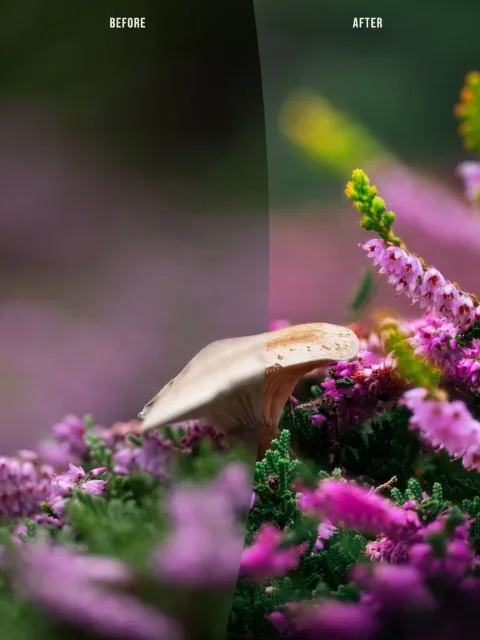
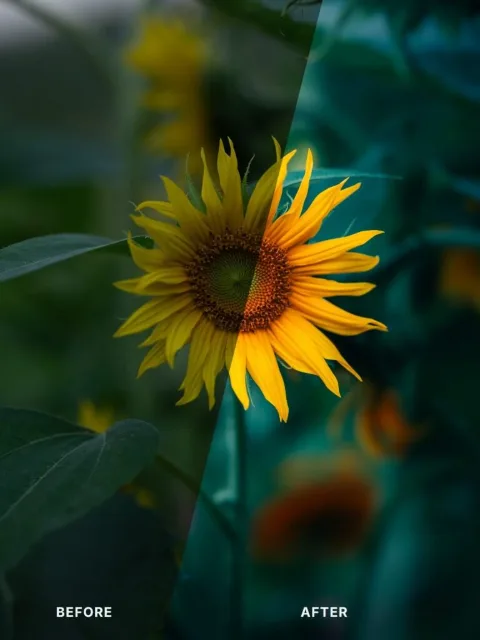
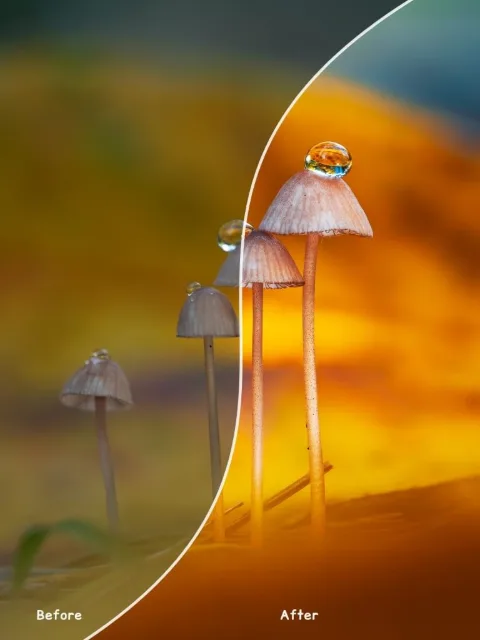
Curved dividerBent around the mushrooms, so each side shows a whole subject with added borderGentle curve dividerA simpler, softer curve, with the labels moved to the topStraight dividerSplit your photos in a straight line
No need to line up your photos first
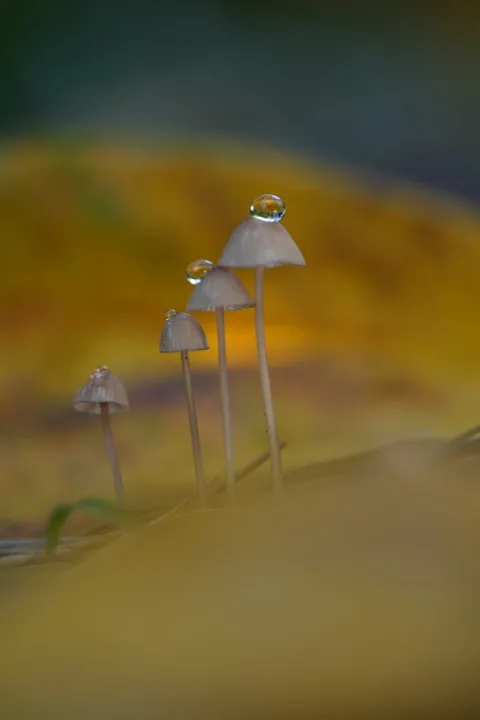
Use any two versions of the same photo. Here the before is a single uncropped shot, straight from the camera, and the after is a focus stack of 30 photos, cropped to 3:4 and edited in Photoshop. The tool finds the same details in both and lines them up for you
BeforeSingle shot, uncroppedAfterFocus stack of 30, croppedCollageLined up automatically
Frequently Asked Questions
Are my photos uploaded?
No, your photos don't leave your device. The Before & After collage maker tool opens and edits your photos locally in your browser, on your own device. Nothing is sent anywhere, and nothing is kept after you close the page
Do I have to import photos that are aligned beforehand?
No need - the tool does it automatically for you. You can upload an uncropped RAW and a rotated or cropped edited photo, and the tool will line them up correctly
What size collage can I export?
You can choose between 3:4 and 4:5 aspect ratios for an Instagram post, or the full area both photos share. Export it at full size or 2048 px tall, which is plenty for Instagram. Nothing is ever enlarged: if one photo has less detail where they overlap, the other is scaled down to match
What are the premium features?
The curved and S-curve dividers, and the placement and styling of the labels (position, distance, size, color and shadow) are only available to subscribers of @macro.viewpoint. Everyone can try them, but without a paid Patreon membership, a collage that uses them is saved with a watermark
Is the collage tool free?
Yes, the straight and angled dividers, the Before and After labels, the line and the export are free, with no sign-up required
What is the Before & After collage maker?
A before and after collage shows two versions of the same photo in a split collage, created by overlapping two versions: the original straight-out-of-camera, and the edited version. It's one of the most popular ways for photographers to show their editing on Instagram, and the best ones look like a single photo split by a line.
Made for photographers
I made this tool for my own Instagram posts. Lining up two photos by hand in an editor takes time, so the tool does it for you - even when the before is a single shot and the after is a focus stack, cropped and edited. It keeps the full quality of your photo, and saves a collage in the sizes Instagram shows best.
Key features
Automatic alignment, even of a single shot and a cropped focus stack
Straight and curved dividers you can bend to your liking